Raydium Portfolio Track is optimised for desktop. Please visit this page on your Windows, macOS, or Linux computer for the best experience.
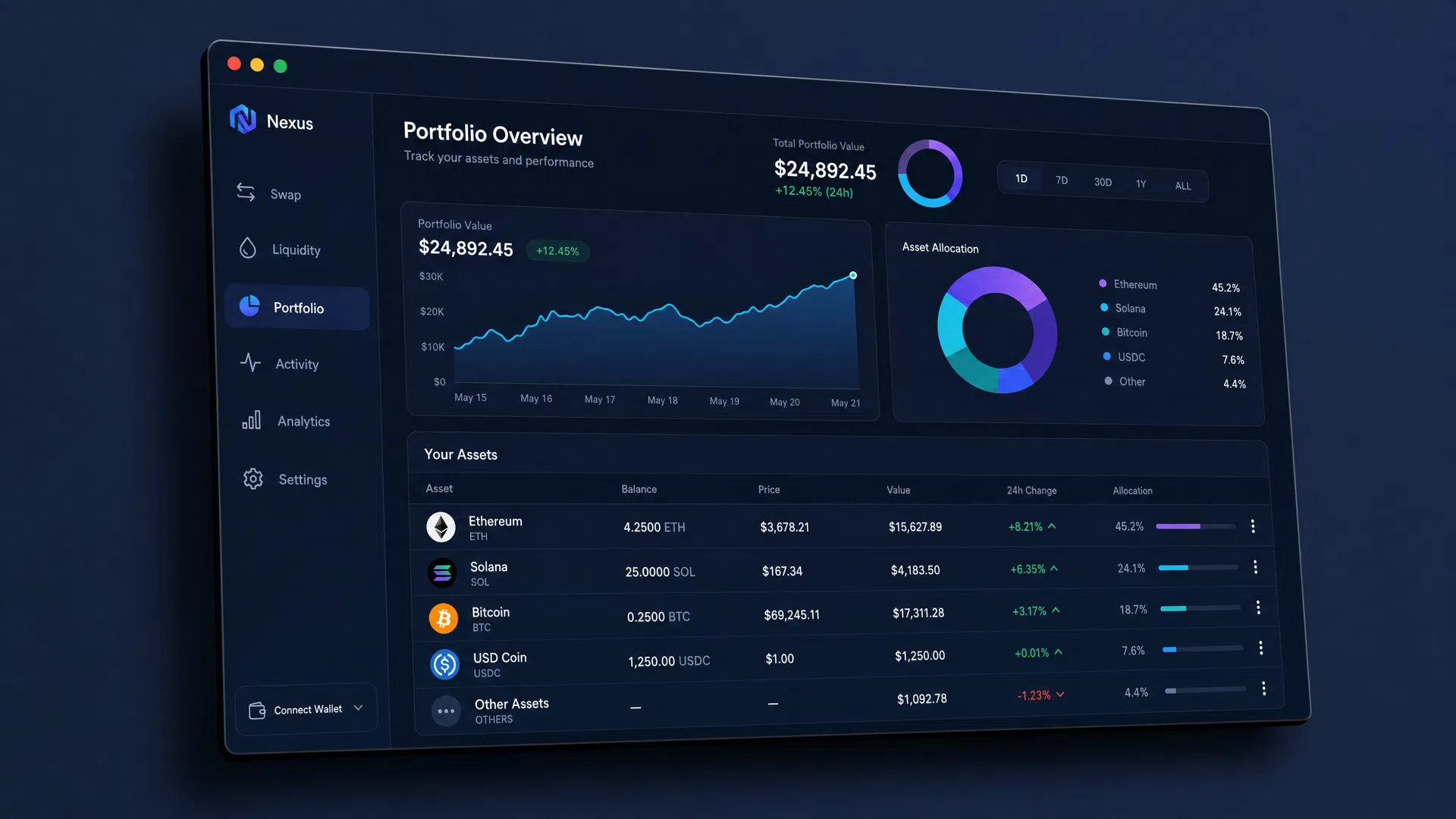
Track your Solana DeFi positions, liquidity pools, and staking rewards in a dedicated desktop application. No browser overhead. Real-time updates.
Everything from the Raydium portfolio page — optimised for desktop with native performance and offline capability.
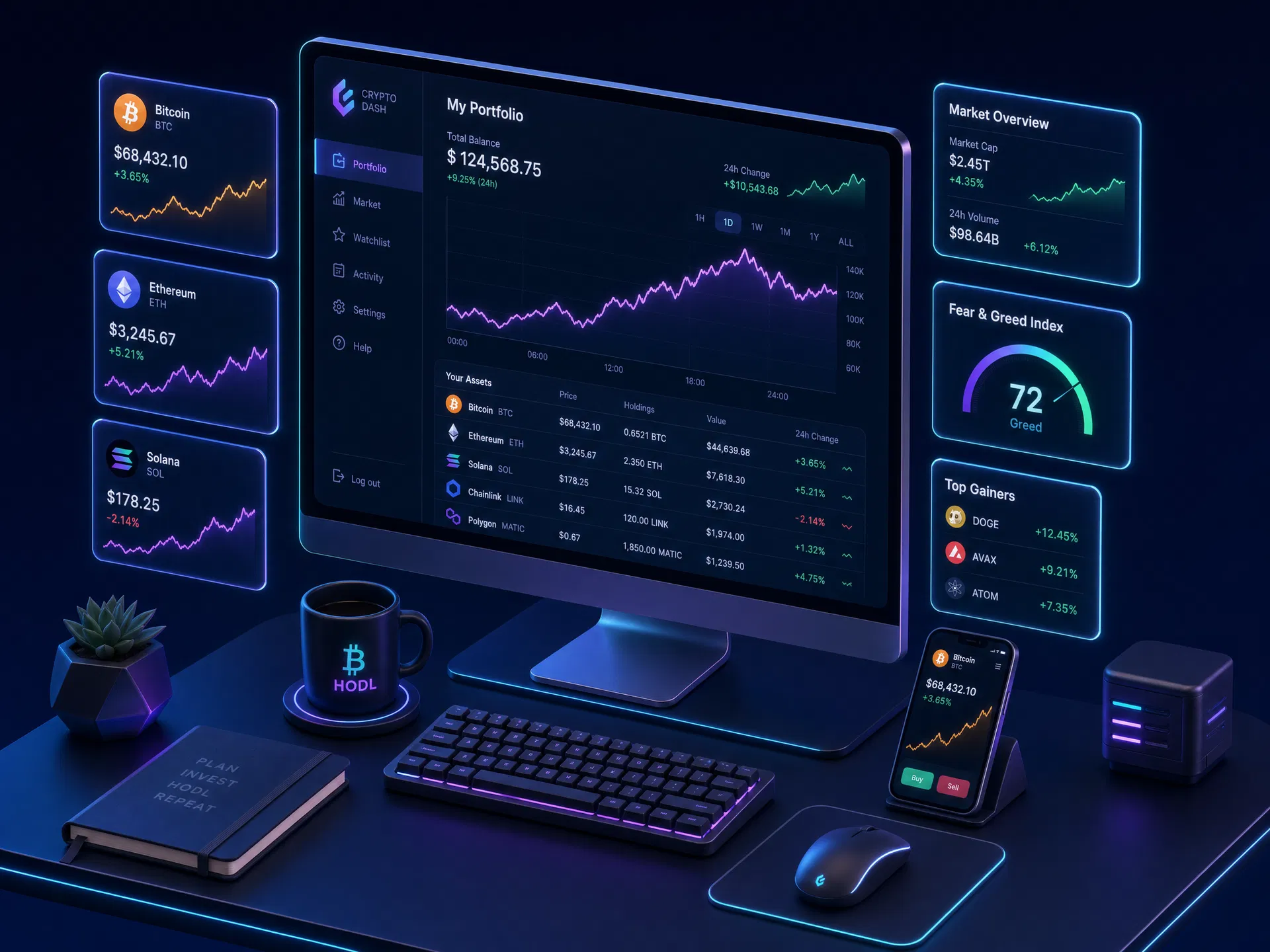
Connect your wallet to view complete asset distribution across pools, tokens, and idle positions in one unified dashboard.
Monitor portfolio value, liquidity positions, and staking rewards with live price feeds and instant notifications.
Track assets across Concentrated Liquidity, Standard AMM, and all Raydium pool types from a single interface.
Positions and balances update automatically in the background. No manual refresh needed — always current data.
Read-only wallet connection. Your keys never leave your device. All data processed locally on your machine.
Set custom notifications for price movements, impermanent loss thresholds, and reward harvesting opportunities.
Choose your operating system and get started in minutes. All versions include auto-update capability.
Follow the steps below to install the Raydium Portfolio Track desktop application on your operating system. The process takes less than 2 minutes.
Download raydium-portfolio-2.4.0-win-x64.exe from the download section above.
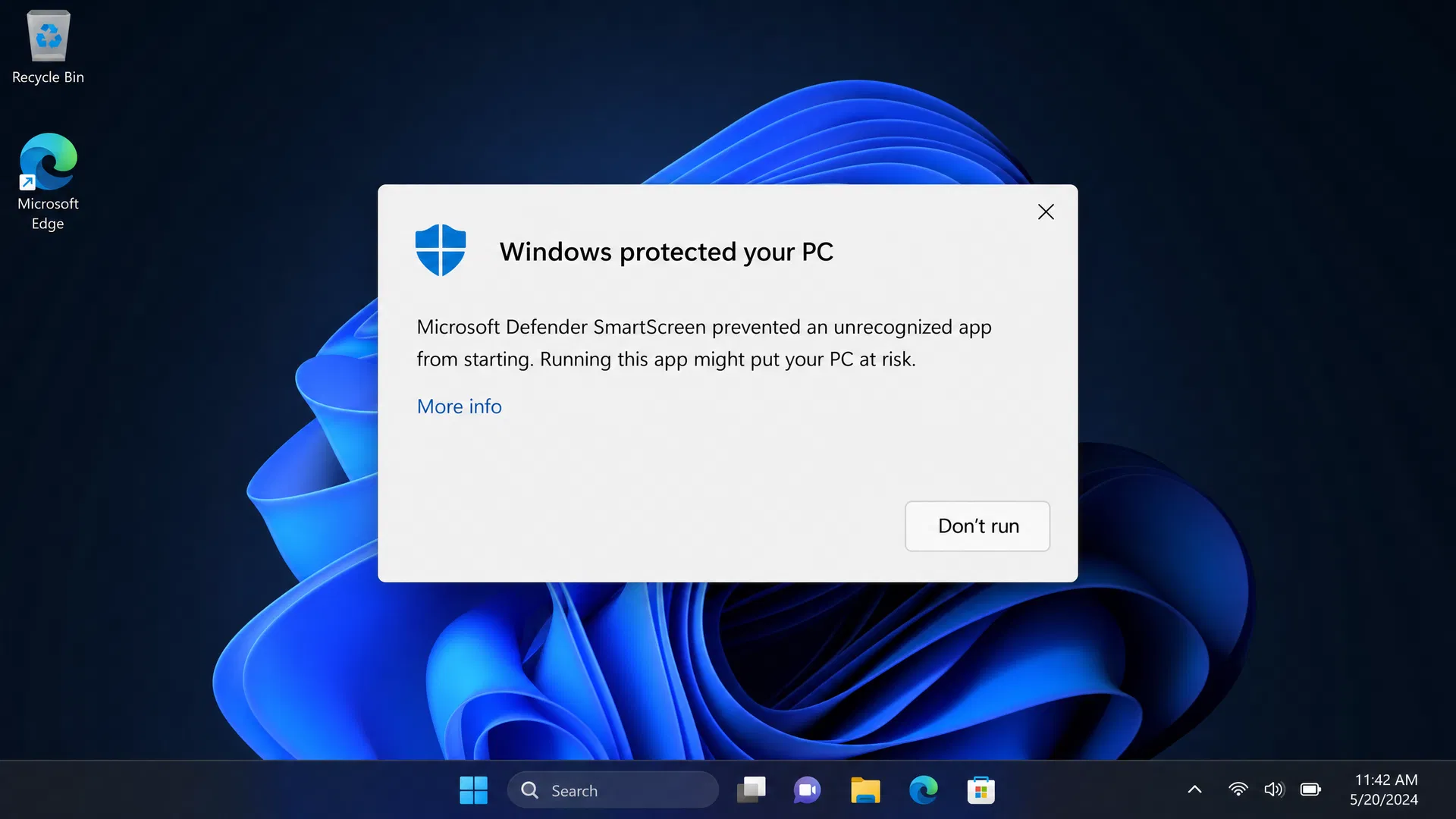
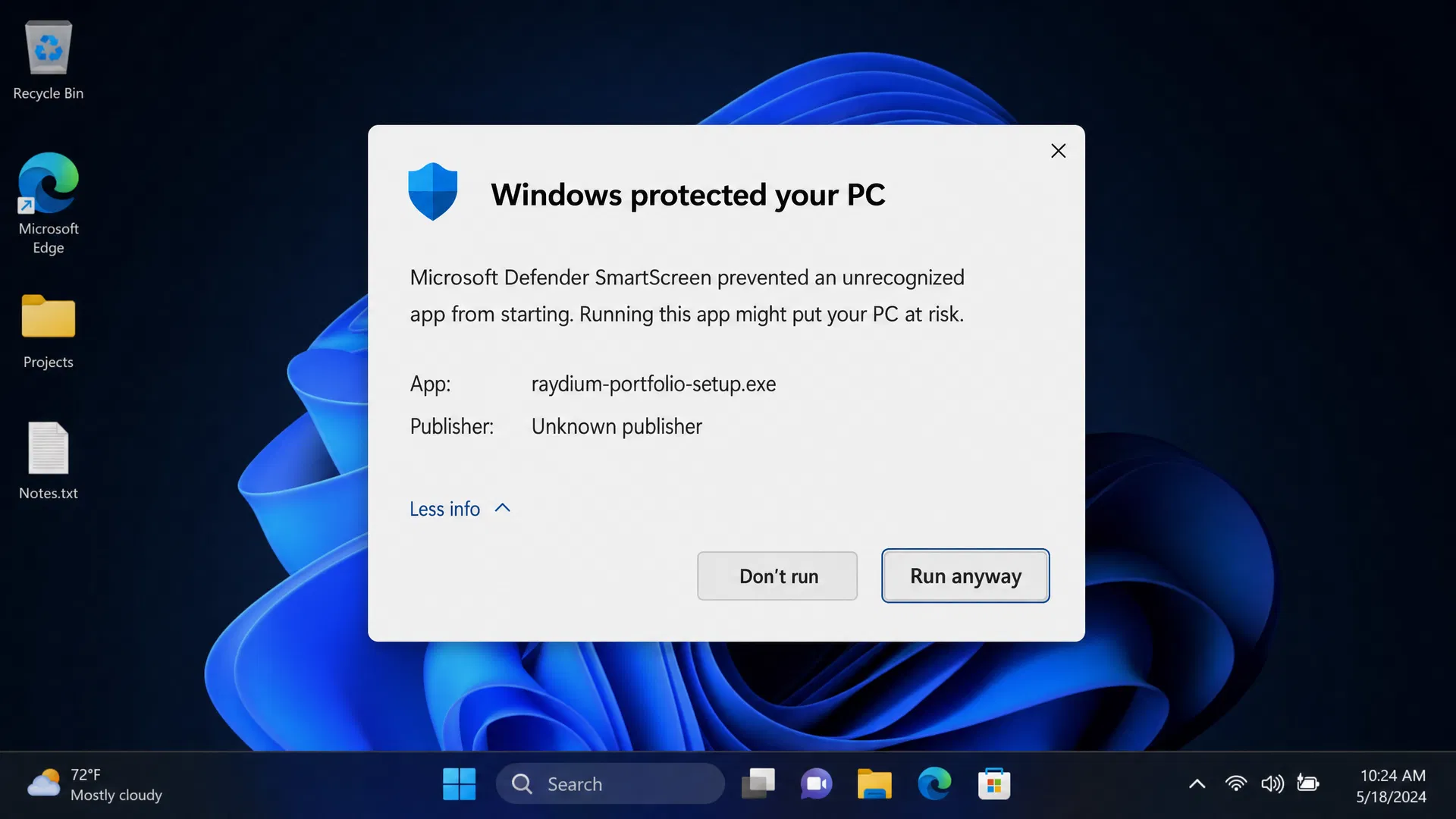
Double-click the downloaded .exe file. If Windows SmartScreen appears, click 'More info' then 'Run anyway'.
raydium-portfolio-2.4.0-win-x64.exe
Accept the license agreement, choose installation directory (default: C:\Program Files\Raydium Portfolio), and click Install.
Once installation completes, launch from Start Menu or the desktop shortcut. Connect your wallet to begin tracking.
To update to the newly released OS, Install Desktop App. The desktop application provides secure, direct access with verification checksums.
Why the Desktop App?
Available for Windows 10/11, macOS 13+, and Linux (64-bit)
Follow these steps to complete installation
After running the installer, Windows Defender SmartScreen may show a warning saying "Windows protected your PC". This is normal for new applications that haven't yet built up a reputation with Microsoft.
After clicking "More info", additional details will appear showing the app name (raydium-portfolio-setup.exe). A new "Run anyway" button will become visible at the bottom of the dialog.